1. Go to the Facebook Business Manager Page
Open Facebook Business Manager.
A new tab will open with your Facebook Business Account dashboard.
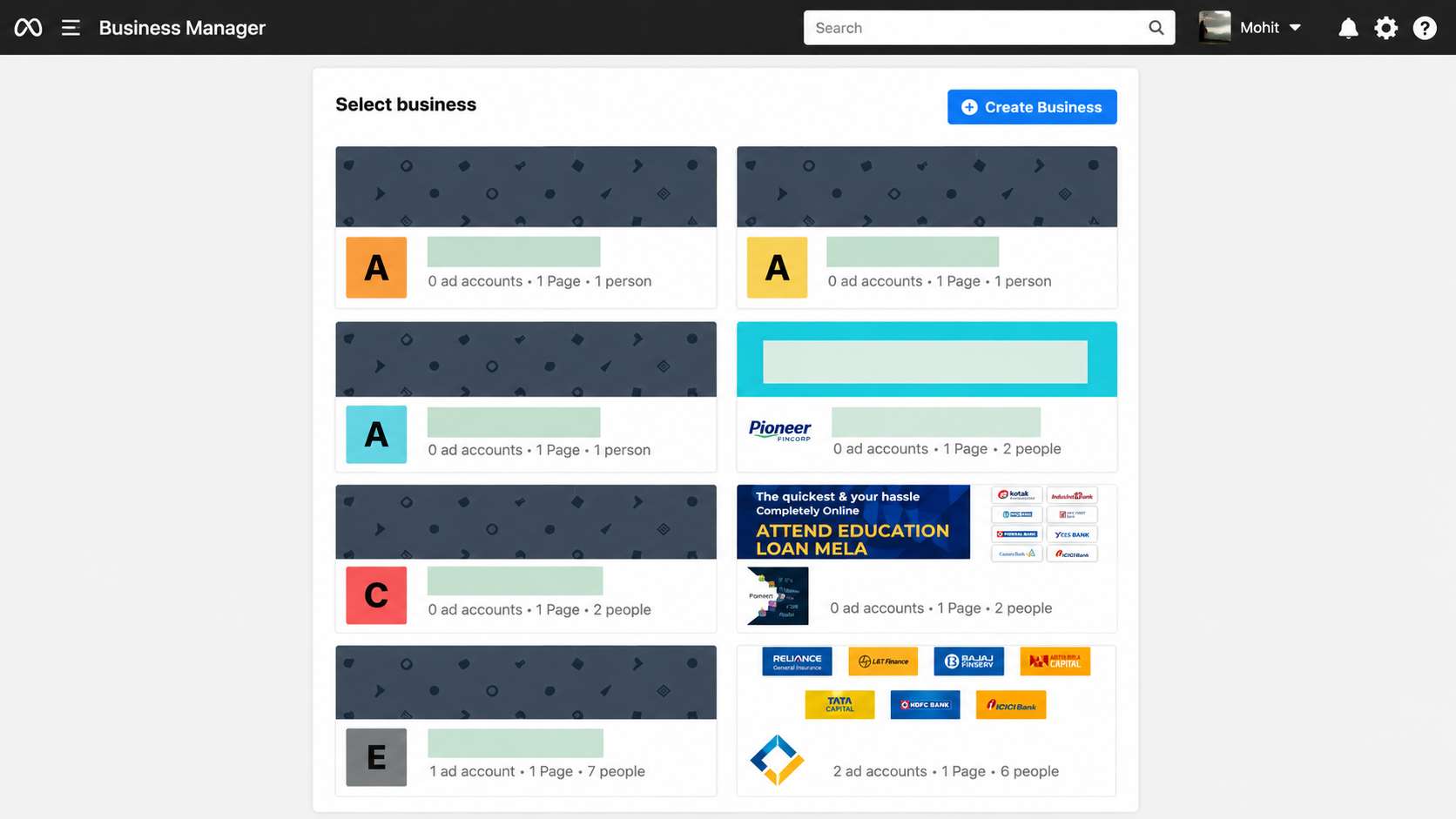
Open Facebook Business Manager.
A new tab will open with your Facebook Business Account dashboard.
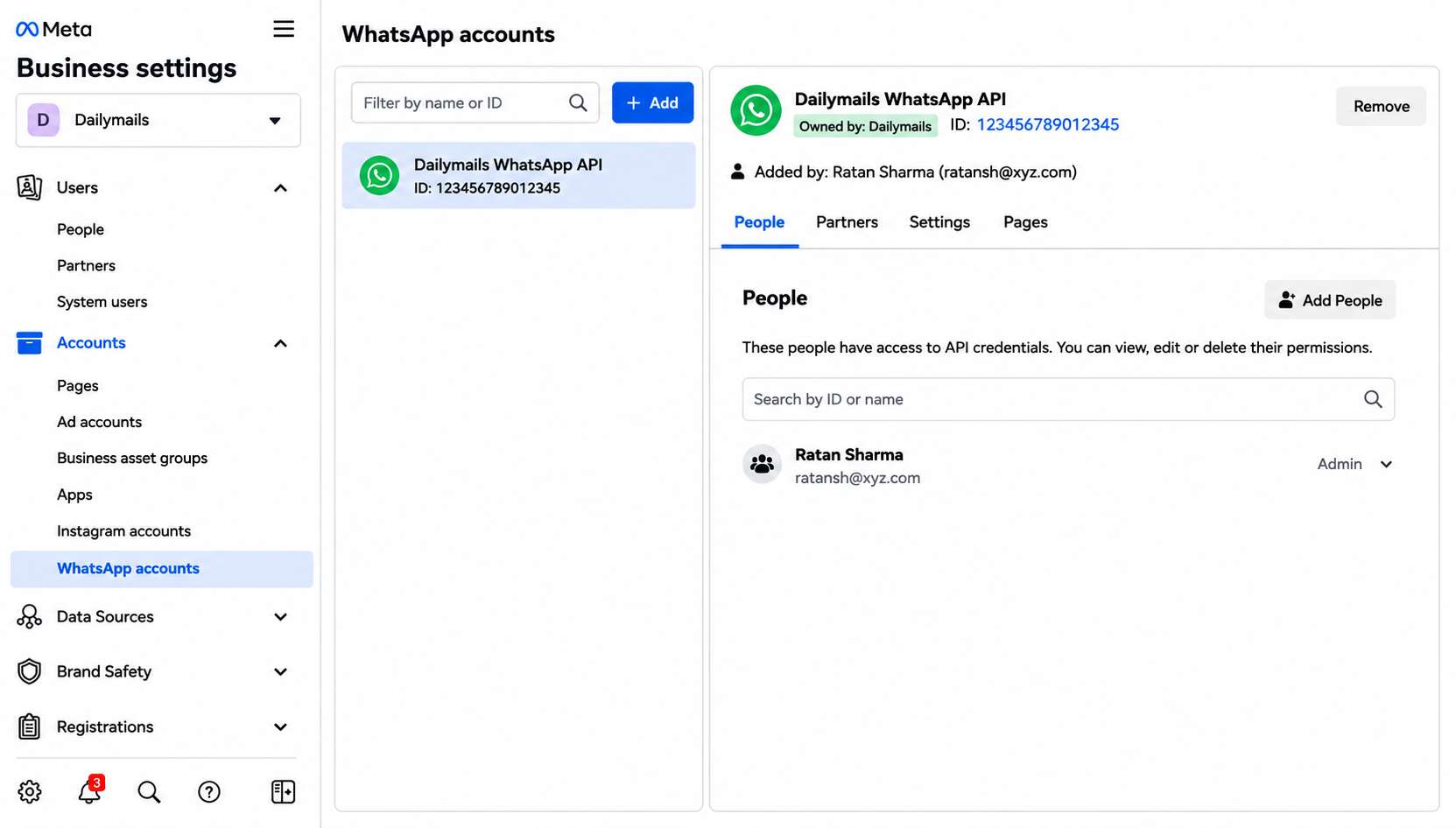
In Facebook Business Manager, click on the WhatsApp Accounts option from the left-side menu and select the WhatsApp Cloud API account you want to downgrade. If you have multiple WhatsApp Cloud API accounts, make sure to choose the correct account before proceeding.
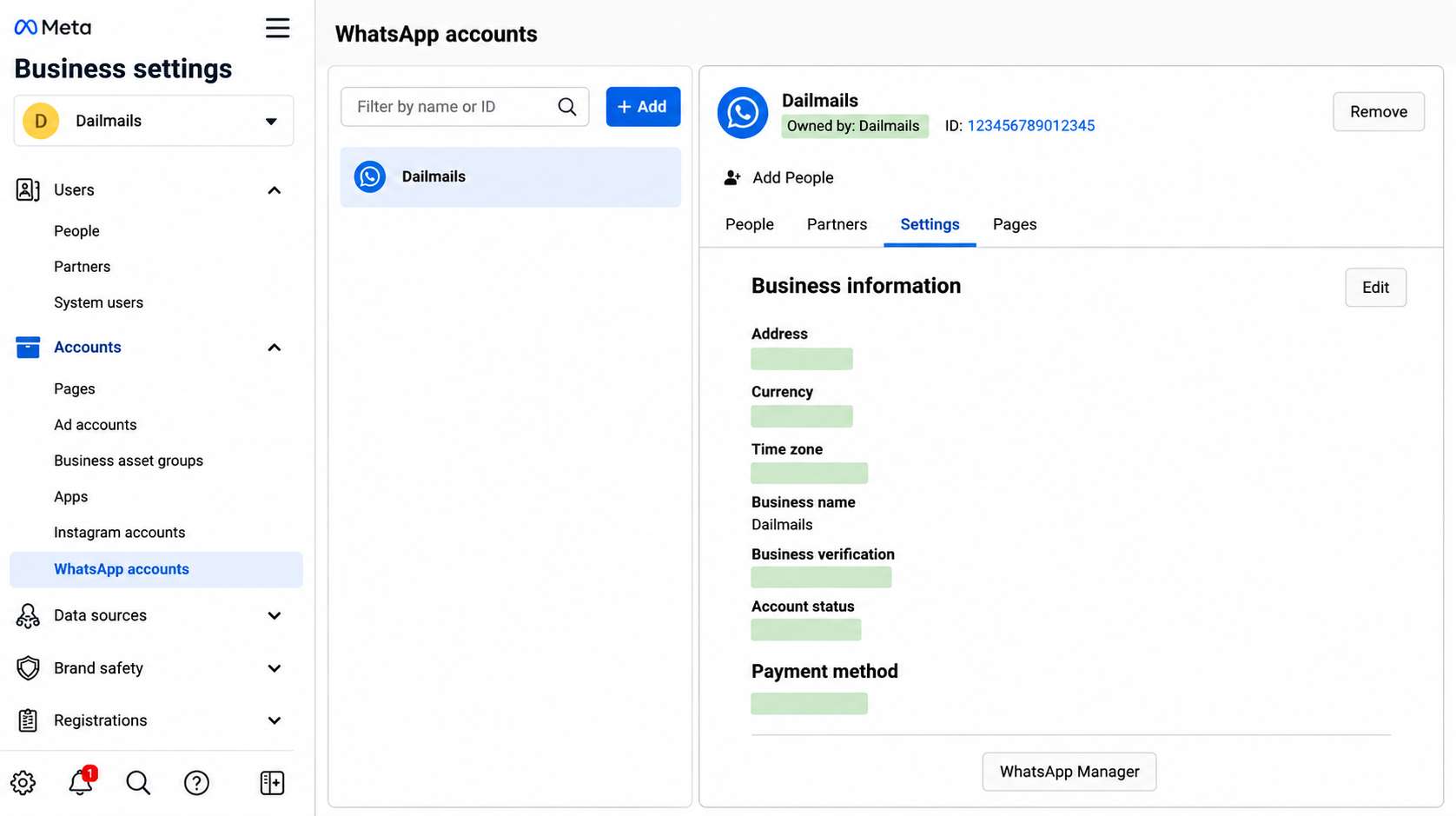
Scroll down to the bottom of the screen and click on ‘Settings’.
Under the Settings section, select ‘WhatsApp Manager’ to continue.
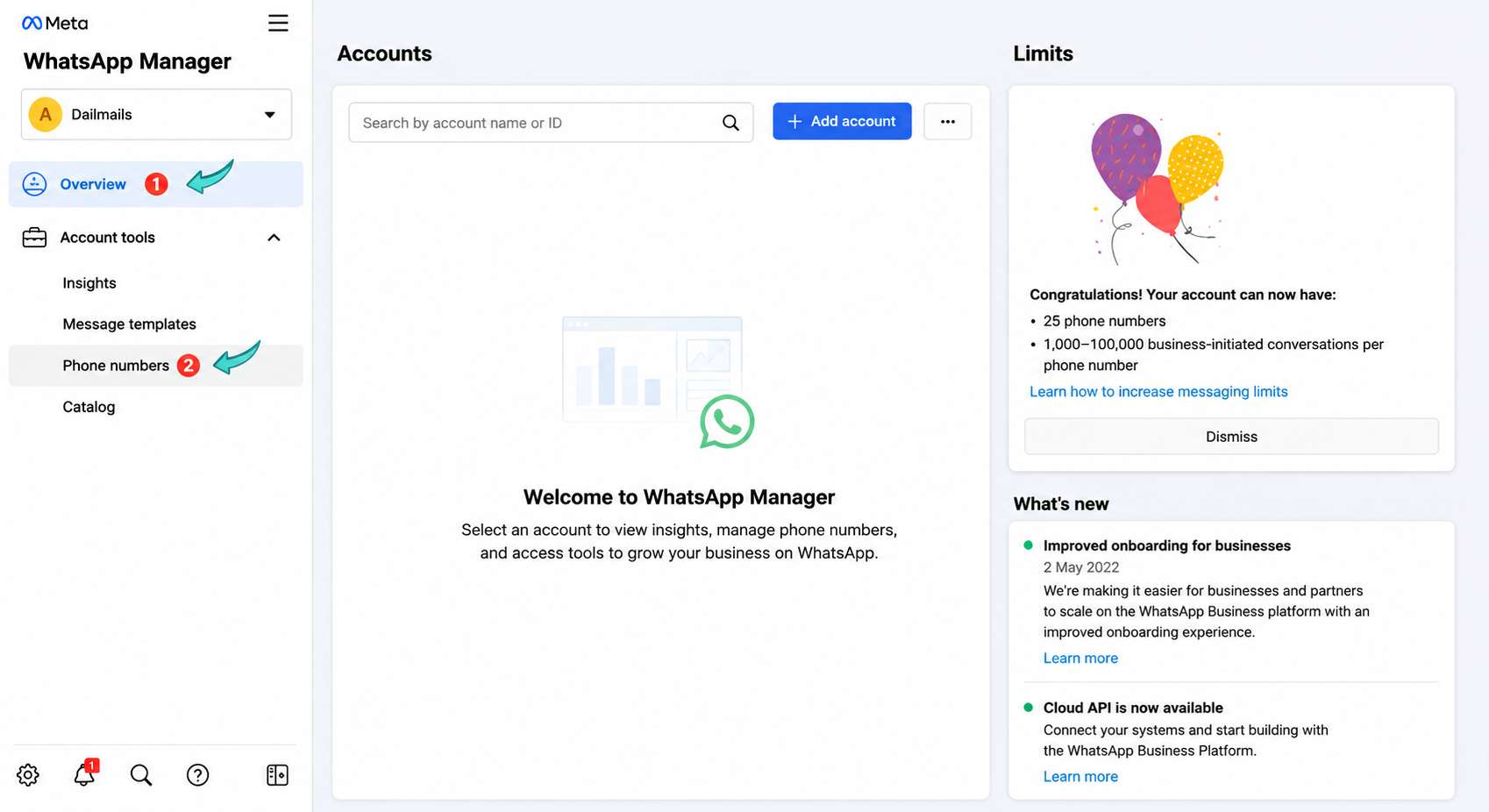
In the Account Tools section, click on the Phone Numbers option to manage your connected WhatsApp phone numbers.
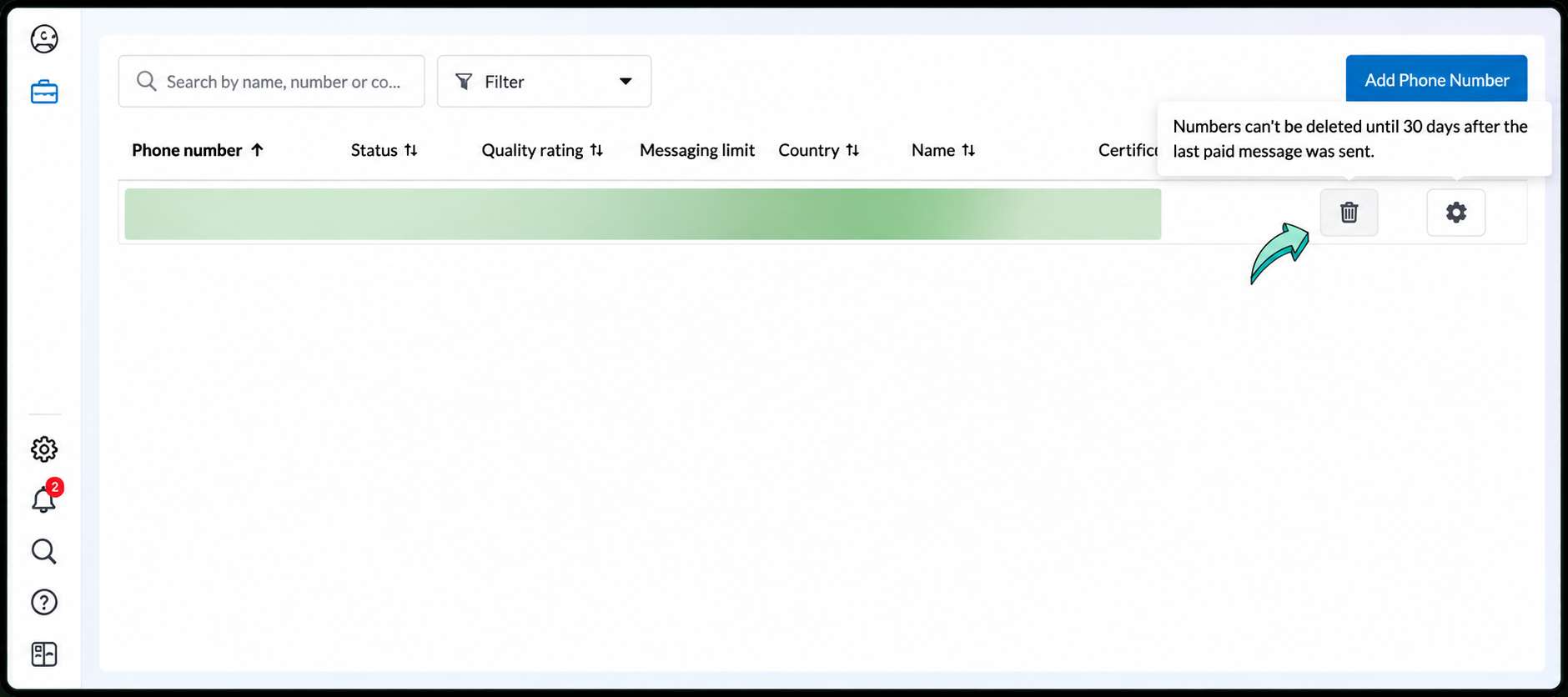
On the next screen, click the trash icon to begin downgrading your WhatsApp Cloud API account.
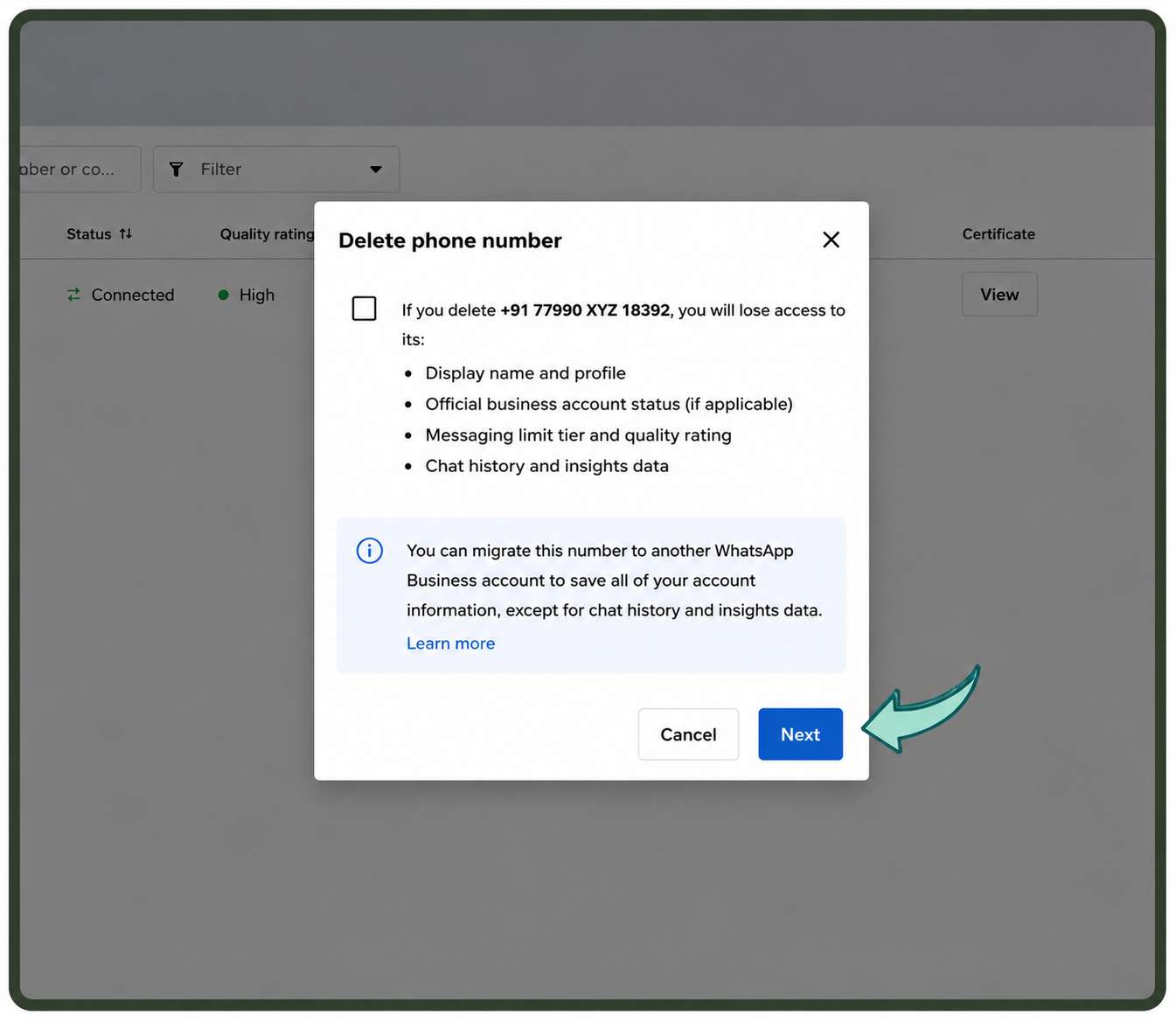
After clicking the trash icon, you’ll see an option to save your data by migrating to another WhatsApp Business Solution Provider (BSP).
Click Next to proceed with the migration process.
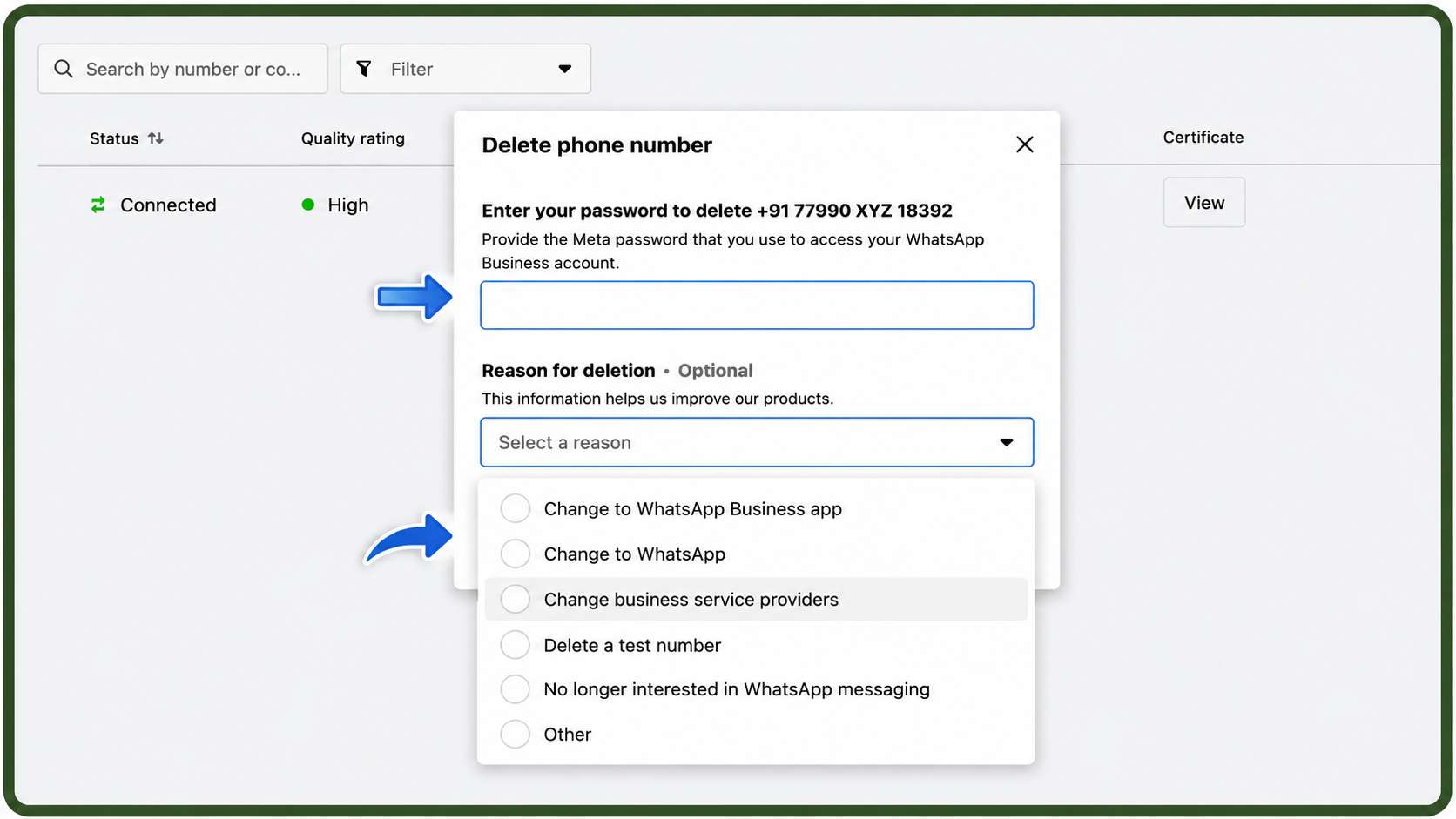
Enter your Facebook account password and, under the reason for deletion, select Change Business Service Providers from the dropdown menu.
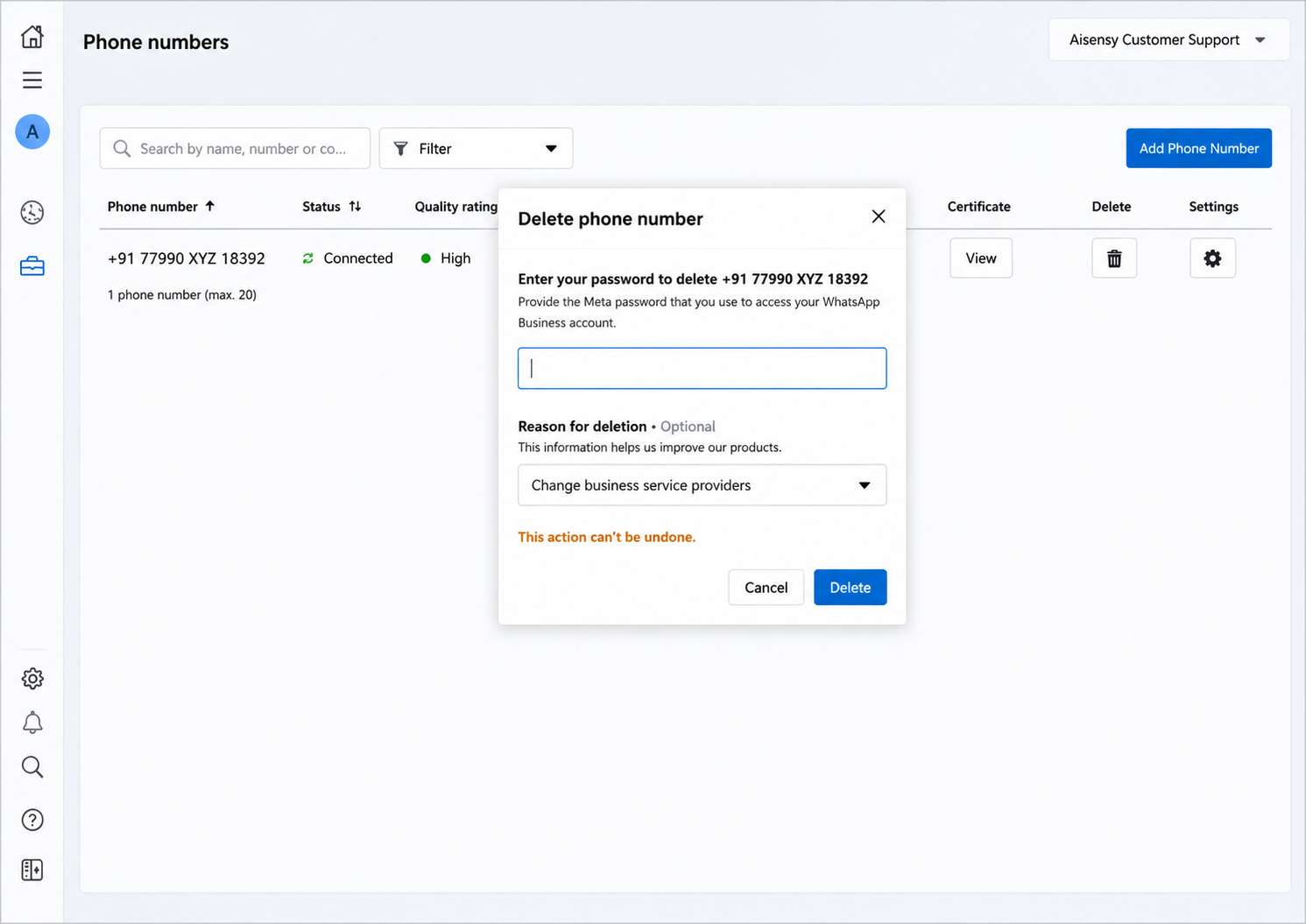
Finally, click ‘Delete’ to successfully downgrade your WhatsApp Cloud API account. Once completed, you’ll be able to apply for the WhatsApp Business API with Dailymails.
Follow the steps below to set up your WhatsApp Business API account with Dailymails.