whatsapp business api

1. Set up a complete WhatsApp Business API


Set up your WhatsApp Business API before applying for the coveted blue tick verification.
Get your business account verified, configure your API, and ensure your messaging is fully compliant with Meta's policies.
A complete and active API setup is the first step toward building trust and getting officially recognized on WhatsApp.
meta business verification

2. Complete Meta Business Verification


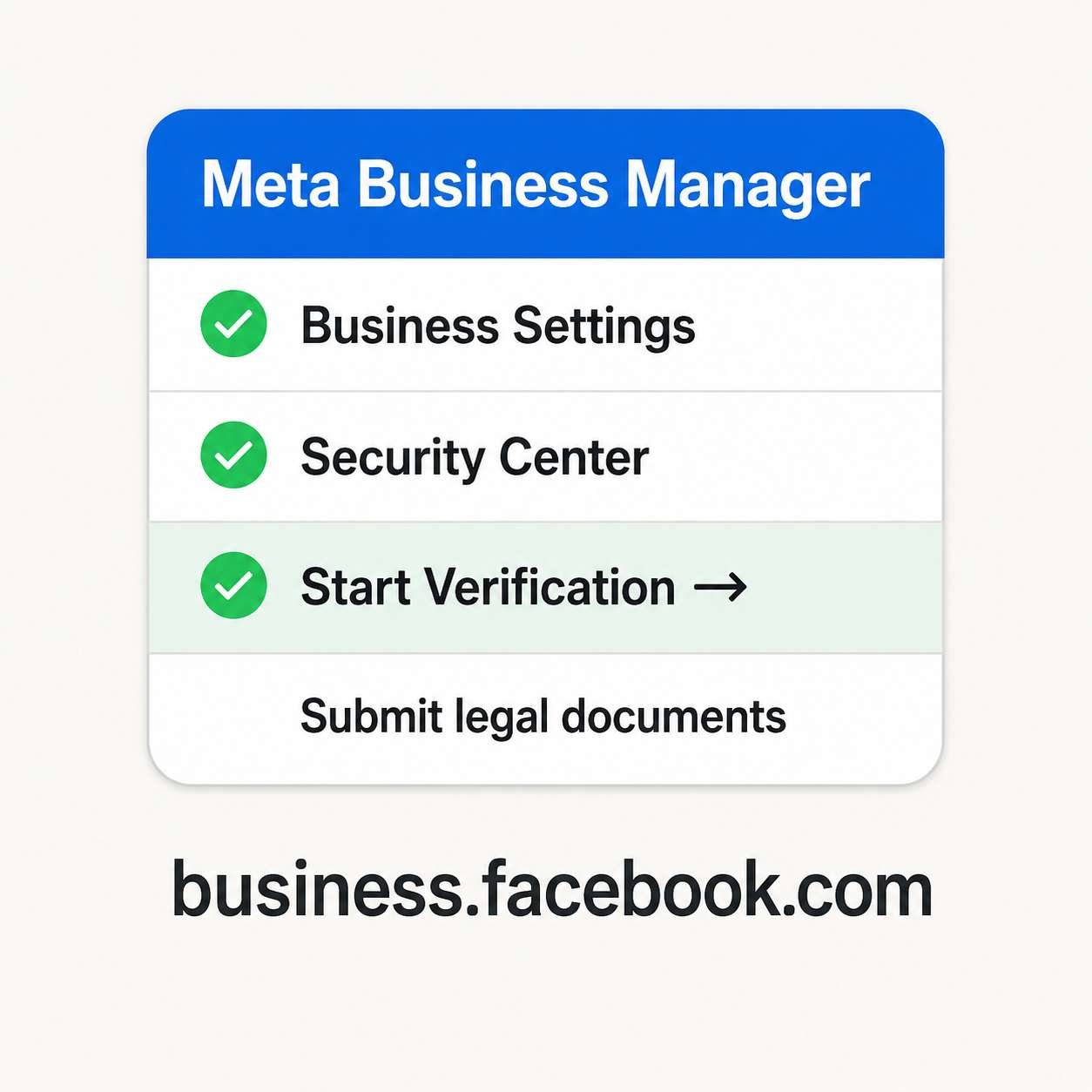
Log in to Meta Business Manager and verify your business's legal identity. This is a mandatory step before your WhatsApp application can be processed.

Go to business.facebook.com → Business Settings → Security Center

Click "Start Verification"

Provide your legal business name, address, and official identifiers

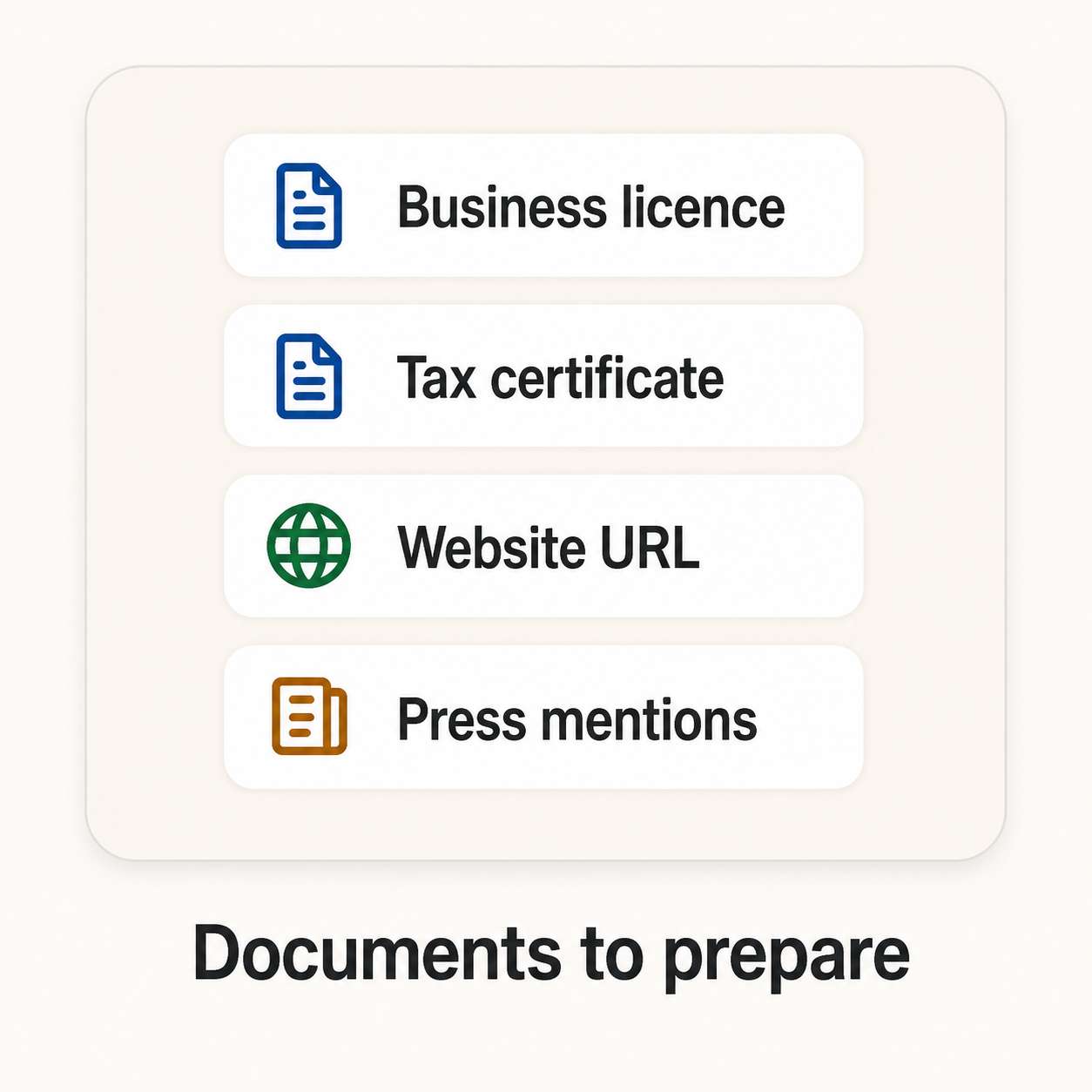
Upload your business licence, tax certificate, or articles of incorporation

collect documents

3. Gather supporting documentation


Strong documentation significantly improves your approval chances. Meta evaluates both your legal legitimacy and your public presence.

Business registration certificate or licence

Official website URL (active and branded)

Links to press mentions from reputable news outlets or directories

Social media profile links (Facebook, Instagram, LinkedIn)

visual for confirm your acount

4. Submit your Official Business Account request


Once Meta Business verification is approved, you can submit the actual blue tick application through WhatsApp Manager.

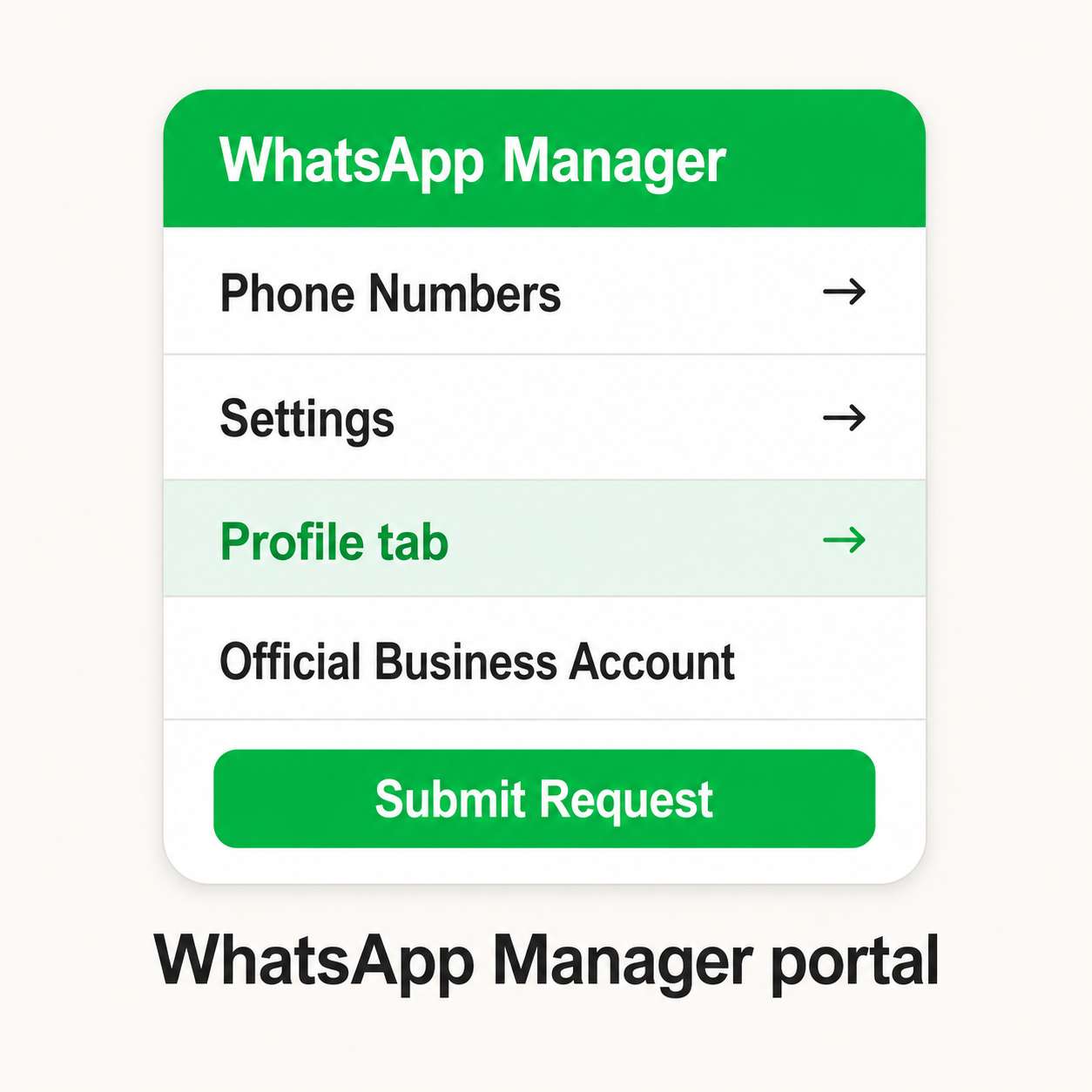
Open WhatsApp Manager and select your sender number

Go to Settings → Profile tab

Under "Official Business Account," click Submit Request

Add your website, country of operation, and supporting links

Submit and wait for Meta's review team

meta review

5. Wait for Meta's review


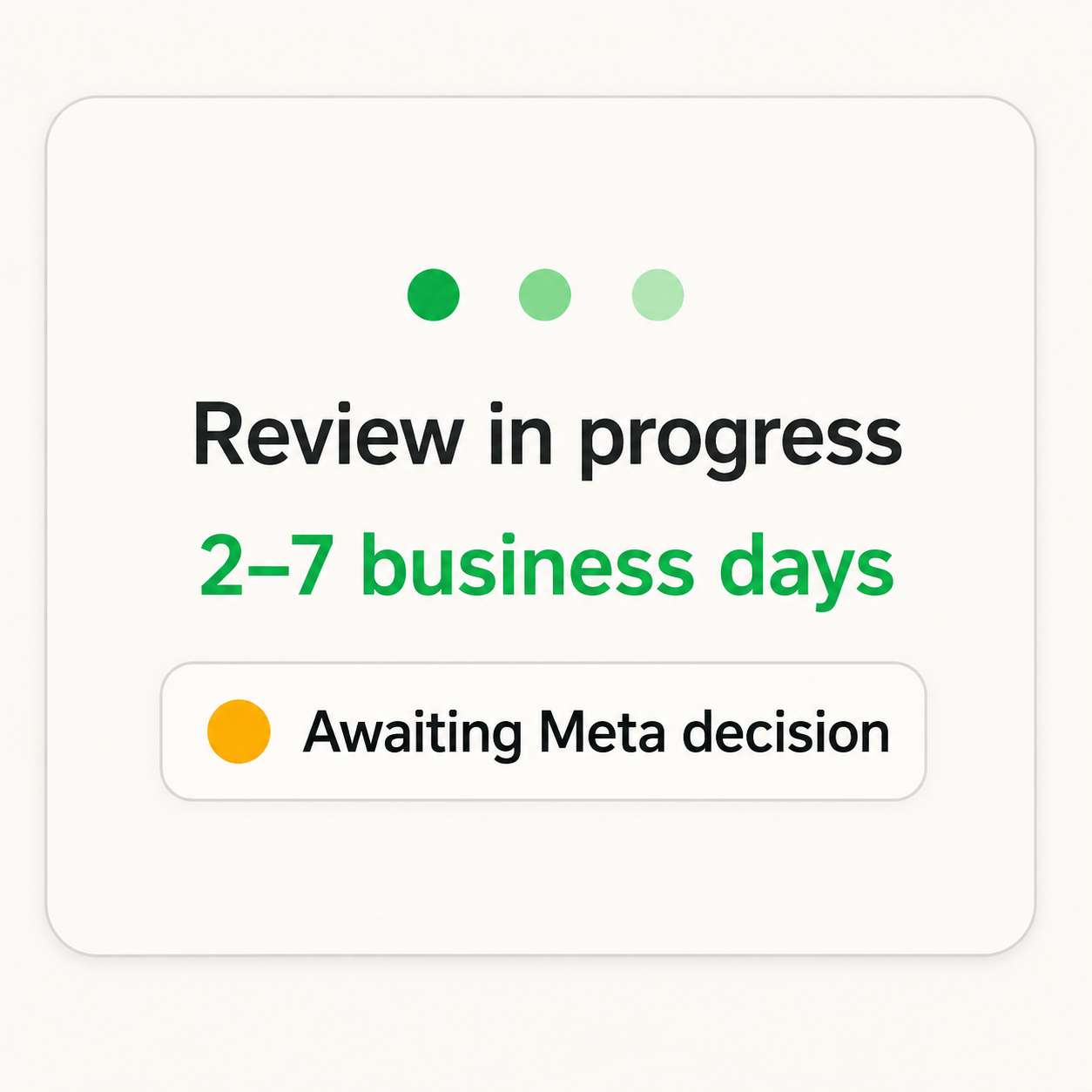
After submission, Meta's team manually reviews your application. Approval typically takes 2–7 business days, though it can extend to two weeks in some cases.

You'll receive an email notification once a decision is made

During this time, do not change your display name or phone number

If rejected, Meta will share a reason — resolve it and reapply

blue tick approved

6. Blue tick approved — you're verified!


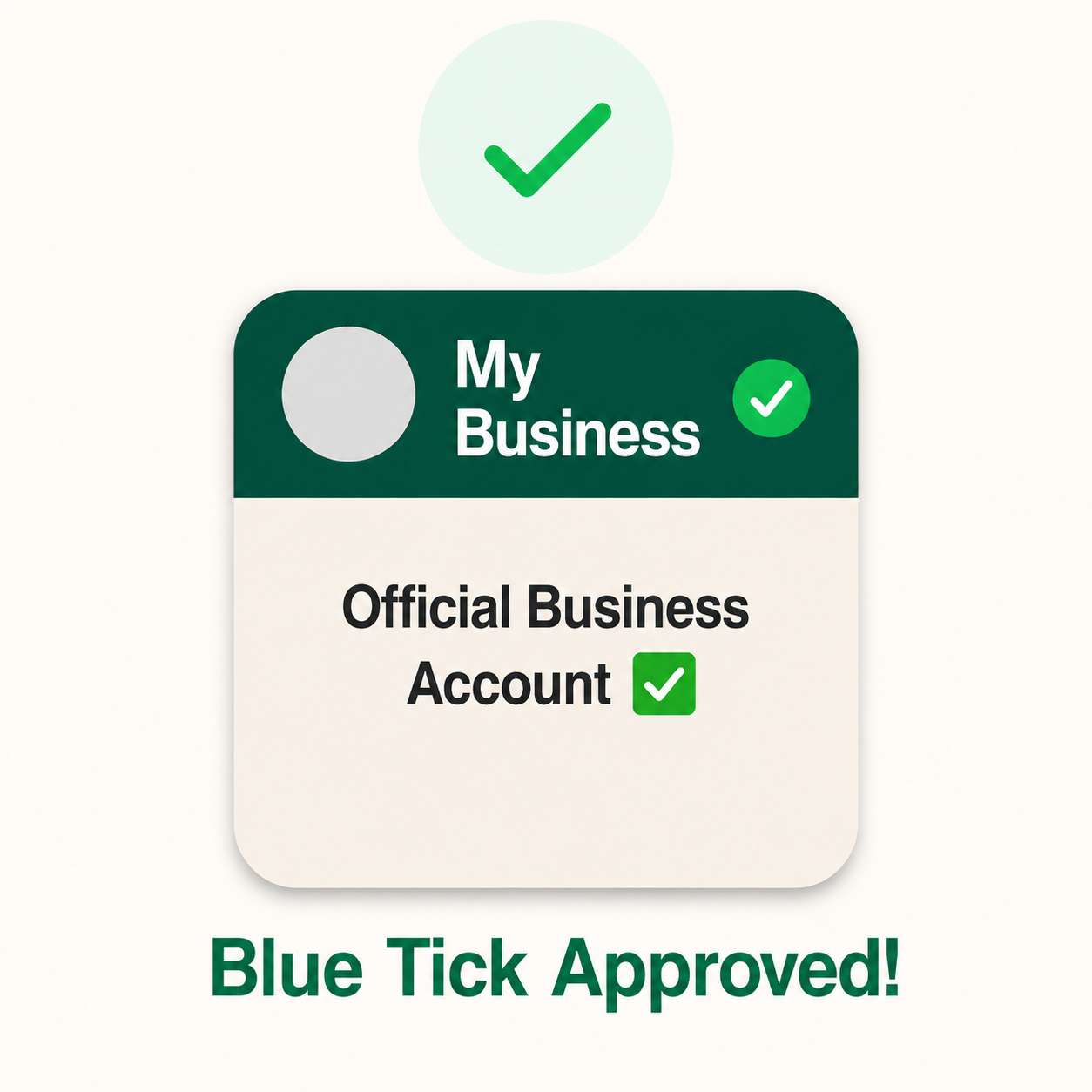
Once approved, the blue checkmark appears next to your business name in every customer chat. Your brand name also replaces the phone number at the top of conversations.

The blue tick displays automatically — no further action needed

Customers will see your verified name instead of a phone number

The badge boosts trust, open rates, and customer response rates

Stay compliant with WhatsApp Business Messaging Policy to keep the badge